Unlock Photoshop with
natural-language photo editing.

AI orchestration, not generation.

You describe the edit. The AI plans the steps. Your own copy of Photoshop carries them out, using its standard adjustment layers, masks, selections, and filters. The AI directs; Photoshop edits.

Not a web app. Not a cloud editor. Runs on your computer with the Photoshop you already have installed.

The demo · Hawaii bay wall art

Watch it build the edit, layer by layer, checking in with you.

You describe the look. The AI opens your Photoshop, builds the adjustment layers one at a time, pauses to confirm a judgment call, then finishes. Every step a real, editable layer.

A scripted demonstration: the user asks for a print-ready wall-art edit of a Hawaii coast photo. The AI opens it in Photoshop and builds adjustment layers one at a time, pauses to ask whether the rock looks too cool, the user replies “a touch warmer”, the AI warms the rock and finishes with a 16:9 crop. Every step stays an editable Photoshop layer.

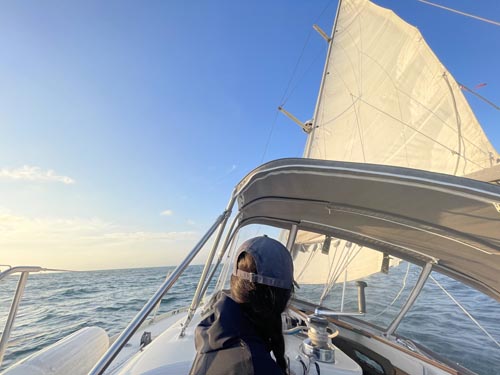
Inspect the layers · Set Sail

Set sail.

A full editorial workup for a wide-angle iPhone sailing shot. Deepens sky and ocean toward cobalt, paints golden-hour warmth at the horizon, recovers blown highlights, sharpens the rigging, and finishes on a soft focus vignette.

Drag the bar (or use ← → on the keyboard) to compare. Left of the line is the finished edit; right is the original.

Want the full capability surface and trust receipts?

See the product page

How it works

You talk. Photoshop works.

For years, getting the look in your head meant nudging sliders and hunting for a tutorial that matched your exact shot. Editmamei plugs your AI chat assistant straight into the desktop Photoshop you already have. You describe what you want, the way you'd tell a friend, and it builds the layers, makes the adjustments, and hands back the finished photo.

Step by step, here's the round-trip behind a single adjustment.

You

AI assistant

in the cloud

Editmamei

on your computer

Photoshop

on your computer

  1. You AI assistant

    warm up the golden hour, lift the shadows, clean up the horizon

  2. AI assistant Editmamei

    add a warming curves adjustment layer

  3. Editmamei Photoshop

    runs the edit using Photoshop's own scripting commands

  4. Photoshop Editmamei

    edit applied + updated layer info

  5. Editmamei AI assistant

    structured result: what changed, what's now in the document

  6. Loop · Check & refine

    1. AI assistant Editmamei

      let me see what it looks like now

    2. Editmamei Photoshop

      render a downscaled JPEG

    3. Photoshop Editmamei

      preview JPEG

    4. Editmamei AI assistant

      preview: the AI looks at the actual pixels

    More to adjust? The AI sends another instruction. Looks done? It hands back to you.

  7. AI assistant You

    done: your photo's ready, fully layered and editable

The AI is the director; Photoshop is the hands. Both live where they already do: the AI in the cloud, Photoshop on your computer.

Edited, not generated.

Most "AI photo" tools are generative. They invent new pixels: skies, objects, even faces that were never in your shot. Editmamei doesn't do that. It works only with the pixels you captured, using the same non-generative Photoshop tools professionals have used for years: adjustment layers, masks, selections, filters. The AI is the director, not the artist. Your photo is yours, just finished faster.

Your files, your machine.

The editing runs in your own Photoshop, on your own computer. There's no Editmamei cloud your library gets uploaded to. When your AI assistant needs to see the result, a downscaled preview is sent to it (the cloud assistant you chose), the same as sharing a photo in a chat. Editmamei's own telemetry is content-free: anonymous usage you can audit and switch off.

Install

Two ways in. Pick your client.

Editmamei runs on your own machine with the Photoshop you already have. One-click for Claude Desktop, or a one-line install for everything else. Then restart your client and ask "Is Photoshop connected?"

Easiest · Claude Desktop

One-click install

No terminal, nothing to configure. Claude Desktop ships its own runtime. Download the extension and add it from Settings.

Download for Claude Desktop (.mcpb)

Free · Windows & macOS · ~8 MB

  1. Open Claude Desktop → Settings → Extensions.
  2. Install the downloaded editmamei.mcpb.
  3. Restart Claude Desktop.

Claude Code · Cursor · any MCP host

Install from npm

For clients that already have Node. The first command installs the package; the second registers Editmamei with every MCP client it detects.

$ npm install -g editmamei
$ editmamei install

The setup command also copies the Claude skill to your Downloads folder, ready to upload at claude.ai → Settings → Skills.

Requirements

  • Adobe Photoshop 2026, internal version 27.x (earlier versions unverified)
  • Windows 10/11 or macOS 12+ (Apple Silicon or Intel)
  • Node.js 20+, only for the npm path (Claude Desktop bundles its own runtime)
  • An MCP-compatible AI client

Supported clients

  • Claude Desktop: one-click (.mcpb)
  • Claude Code: npm
  • Cursor: npm
  • Any other MCP host: npm

Full setup walkthrough in the Getting Started guide.