
Product
The full editing surface.
What Editmamei does, broken out: the pillars of the toolkit, every capability category, and prompts that work today. For the elevator pitch, see the home page.
GIMP support is in beta. Editmamei can also run GIMP 3.2 in the background for tone and colour work; everything else on this page is about Photoshop. Read the GIMP guide.
What it is
Photoshop, but the AI does the menus.
Editmamei gives your AI assistant a working photographer's toolkit inside Photoshop: documents, layers, selections, adjustments, filters. Your AI calls them as building blocks in service of what you actually want done, instead of you hunting through menus.
1
Desktop Photoshop, driven by language
Editmamei drives desktop Adobe Photoshop: the full program, not a hosted web app or a cloud copy. Your AI talks to the desktop, and your project files live there.
2
Non-destructive by default
Adjustment layers, masks, groups. Editmamei builds the kind of layer stack a working editor builds. Everything stays editable, maskable, removable. Nothing bakes into pixels unless you ask.
3
Recipes that reproduce
A template is a reproducible aesthetic recipe. Apply it later to a different image and the AI reads the recipe’s reasoning to recreate the look on the new file. Editing decisions stop being one-shots. The whole template system, authoring and applying alike, is a Pro feature.
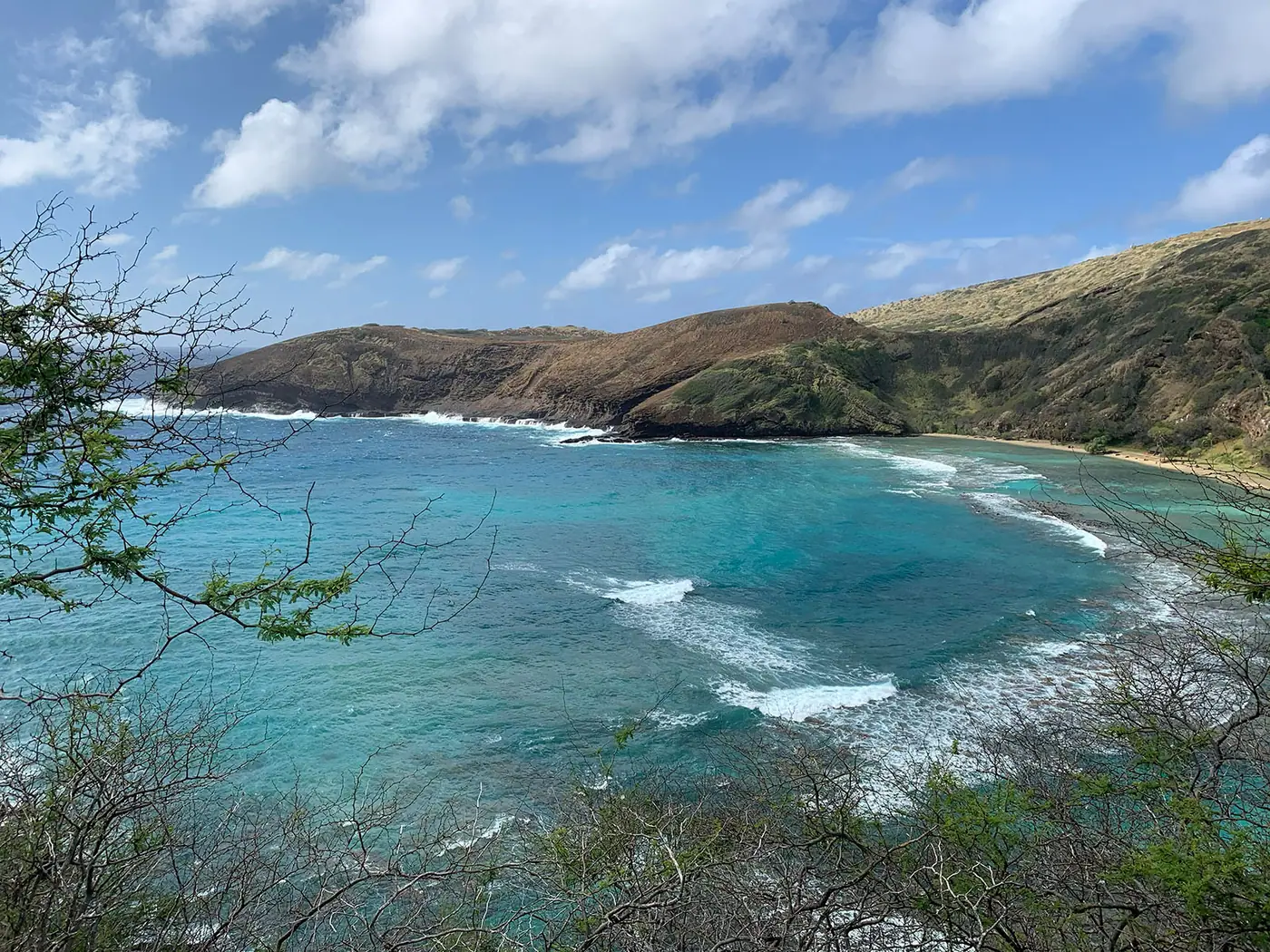
The process · Hawaii bay wall art
One conversation, start to finish.
The AI plans each step and Photoshop runs it. Halfway through it pauses on a judgment call, gets an answer, and carries on.
A scripted demonstration: the user asks for a print-ready wall-art edit of a Hawaii coast photo. The AI opens it in Photoshop and builds adjustment layers one at a time, pauses to ask whether the rock looks too cool, the user replies “a touch warmer”, the AI warms the rock and finishes with a 16:9 crop. Every step stays an editable Photoshop layer.
What it does
The full editing surface, exposed as tools.
Eight categories, each shown as one real Photoshop tool run on the same photo, so the AI plans accurately and you can audit what it ran. Hover or tap a result to see the original.
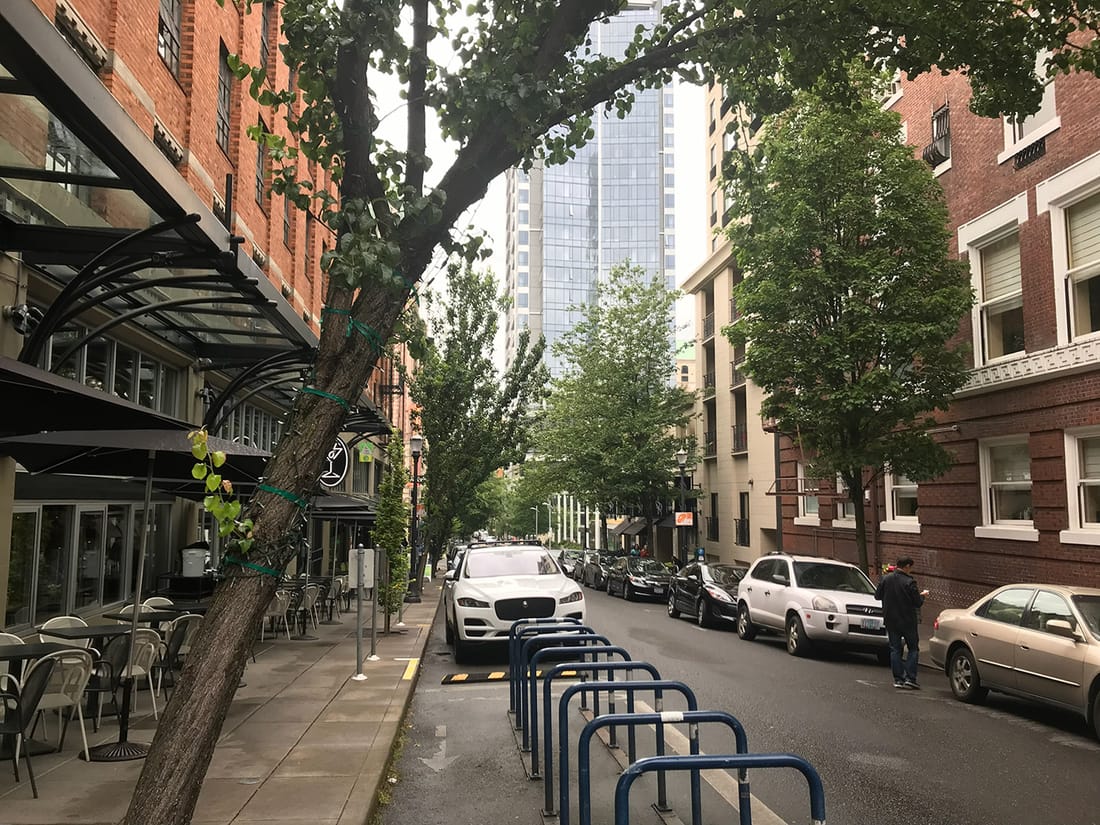
Documents
Open PSD, JPEG, PNG, TIFF, DNG, HEIC, and the standard raw formats; save layered PSDs; export JPEG and PNG. Camera metadata (make, model, lens, ISO, focal length, GPS) and ACR develop settings surface to the AI before it edits.
- Saturation +42
- Deepen sky
- Background blur
- Background
Layers
Create, duplicate, delete, rename, reorder, group, merge, flatten. Set opacity, blend mode, visibility, locking. The complete layer tree returns as JSON, so the AI always knows the document structure. Move, scale, rotate, and fit-to-document transforms are included too.
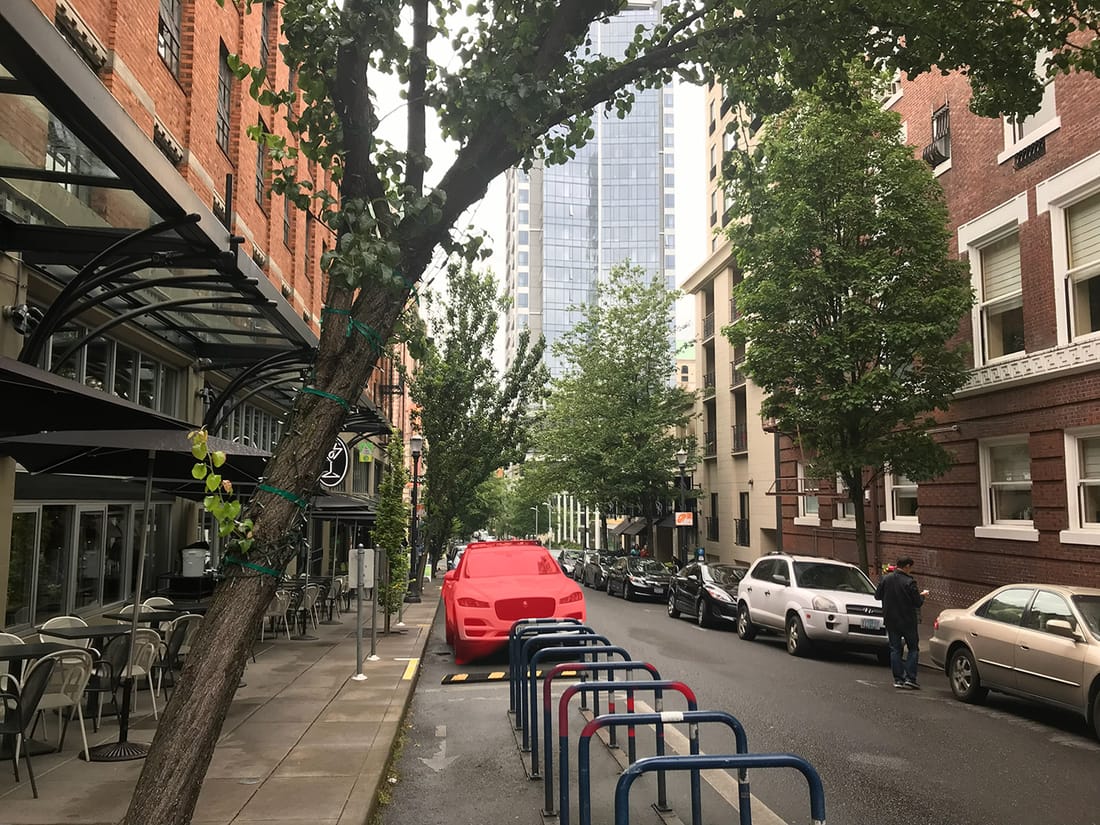 Select Subject
 Smart selections
Magic Wand, rectangle, color and luminance range, feather, refine edge, plus Select Subject and Select Sky. Every selection returns area, edge complexity, and pixel counts, so the AI verifies before committing to a mask or adjustment. Pro adds named-object masks and face-feature selections.
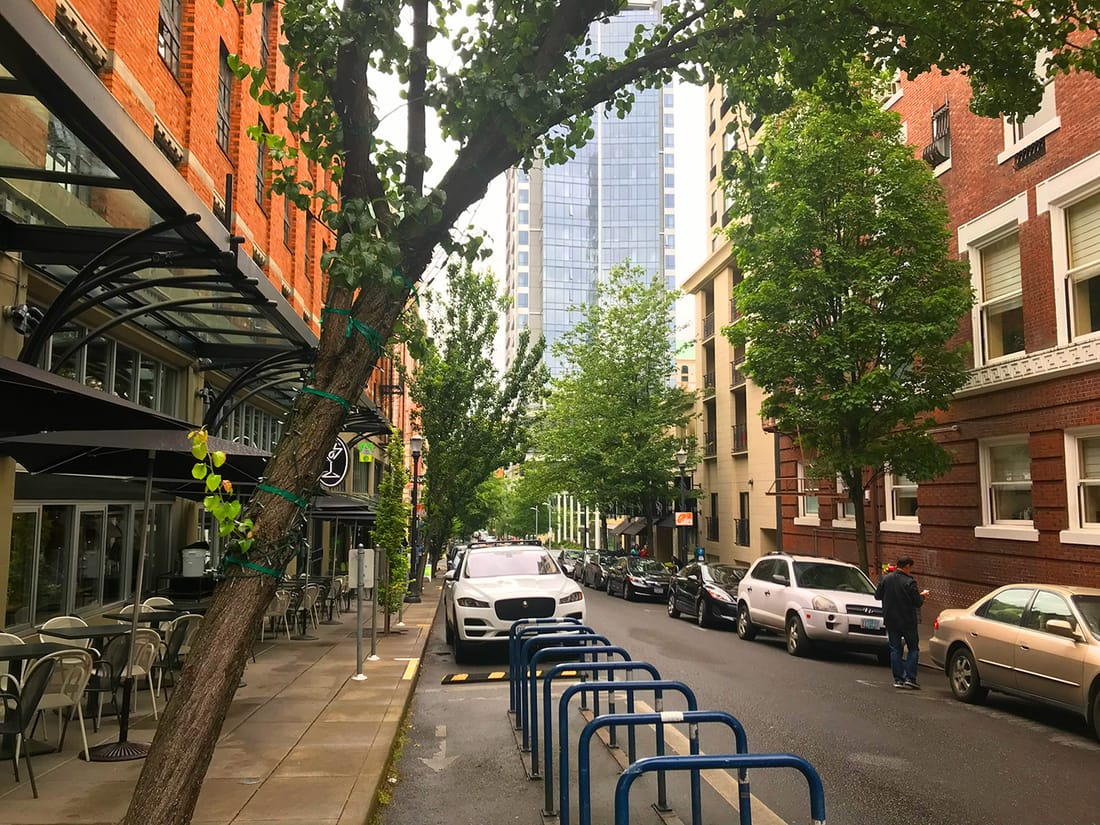
Non-destructive adjustments
Curves, Levels, Hue/Saturation, Brightness/Contrast as adjustment layers: editable, maskable, removable. An active selection at call time becomes the new layer’s mask automatically.
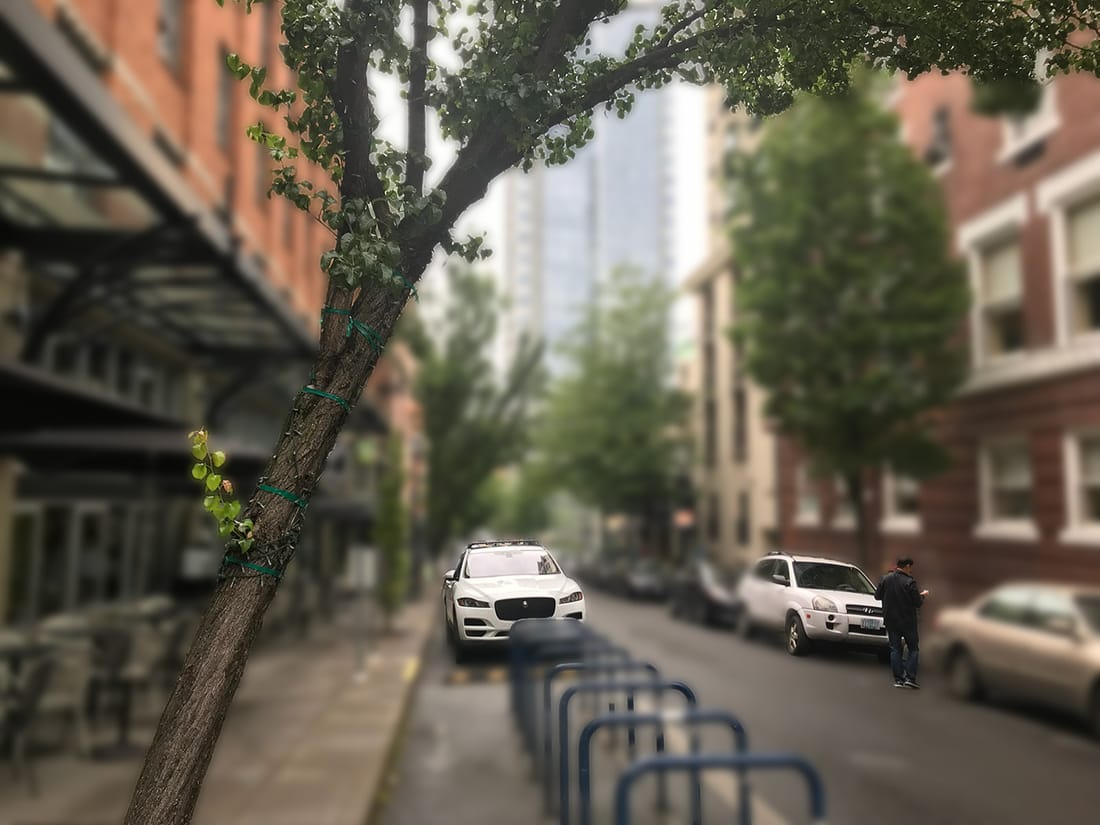
Filters & styles
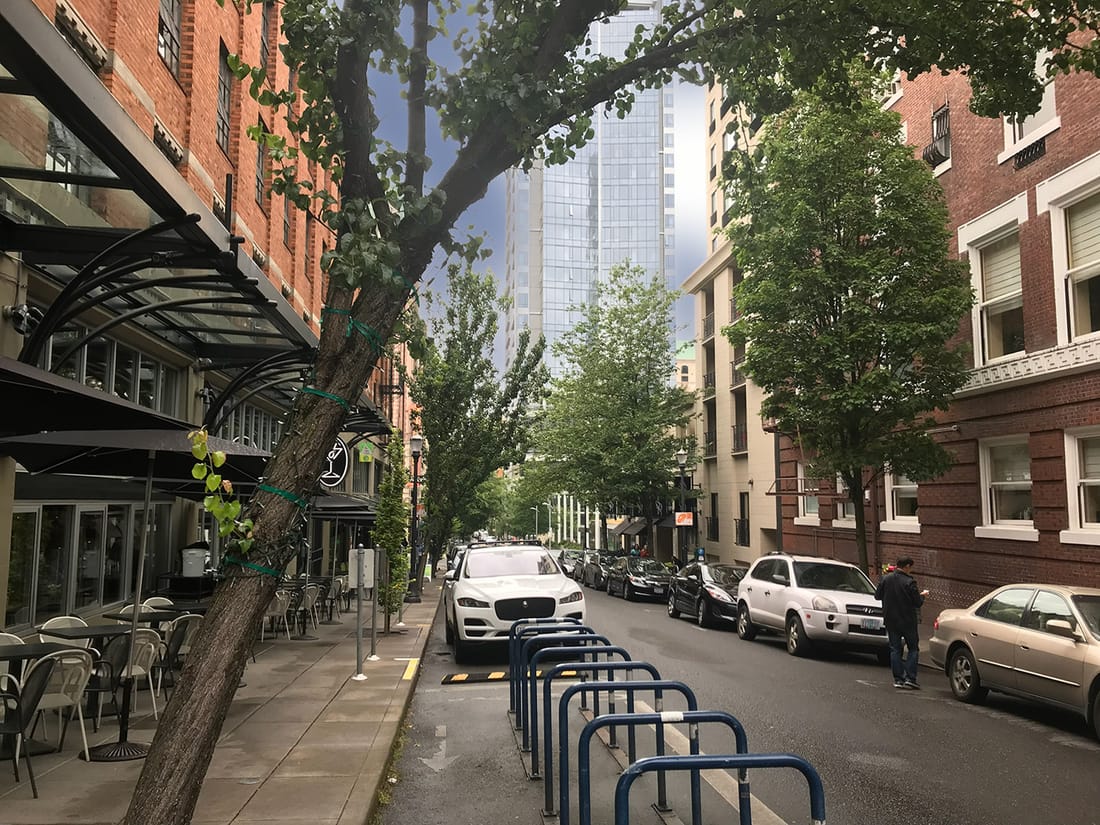
Gaussian Blur, Motion Blur, Sharpen, Smart Sharpen, Reduce Noise, High Pass, Shadows/Highlights, Add Noise. Drop shadow, stroke, outer glow as full layer styles. Auto-rasterization handles text and Smart Object inputs cleanly.
Masks
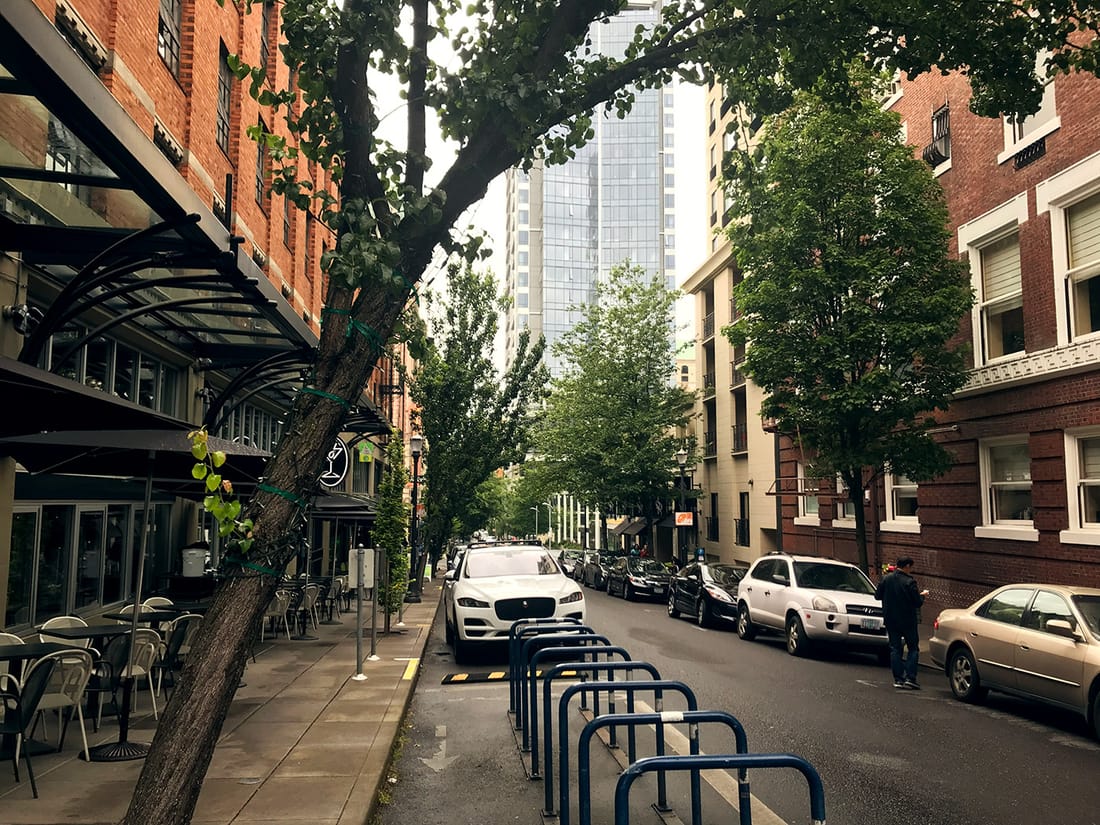
Layer masks across the lifecycle: create from the active selection (or reveal-all), apply, delete. Discrete tools, predictable behavior.
Templates
A reproducible aesthetic recipe: capture a finished edit, then apply it to new images later, where the AI re-derives each value for the new photo and self-judges against the recipe's exit criteria. The whole template system (create, save, apply, verify, recall) is a Pro feature.
Visual verification
Downscaled JPEG previews return inline so the AI sees what the document actually looks like and confirms operations actually changed pixels instead of trusting a success message. 256-bin per-channel histograms with mean / stdev / median back that up quantitatively.
The round-trip
What one adjustment actually does.
Four participants, one instruction, and a check-and-refine loop that runs until the result matches what you asked for.
Step by step, here's the round-trip behind a single adjustment.
You
AI assistant
in the cloud
Editmamei
on your desktop
Photoshop
on your desktop
- You AI assistant
“warm up the golden hour, lift the shadows, clean up the horizon”
- AI assistant Editmamei
“add a warming curves adjustment layer”
- Editmamei Photoshop
runs the edit using Photoshop's own scripting commands
- Photoshop Editmamei
edit applied + updated layer info
- Editmamei AI assistant
structured result: what changed, what's now in the document
Loop · Check & refine
- AI assistant Editmamei
“let me see what it looks like now”
- Editmamei Photoshop
render a downscaled JPEG
- Photoshop Editmamei
preview JPEG
- Editmamei AI assistant
preview: the AI looks at the actual pixels
More to adjust? The AI sends another instruction. Looks done? It hands back to you.
- AI assistant You
“done: your photo's ready, fully layered and editable”
Both live where they already do: the AI in the cloud, Photoshop on your desktop.
What you say to it
Prompts that work today.
The AI reasons about intent. Editmamei handles the choreography.
Example 1 · Landscape grade in one sentence
"Open E:\Photos\beach.jpg. Build a non-destructive editing stack with Curves and Hue/Saturation adjustment layers, group them as 'grade', and warm the midtones slightly. Save the layered PSD next to the original and export a 2400px sRGB JPEG."
What happens
Roughly ten distinct tool calls. Each verifiable, each undoable. The AI reasons about intent; Editmamei handles the Photoshop choreography.
Example 2 · Portrait retouch with feedback
"Open this portrait. Use Select Subject to isolate the person, feather the selection 2 pixels, and add a Curves adjustment layer clipped to that selection that gently warms the skin tones. Show me the before and after."
What happens
The AI can look at a preview at any step to see what the document looks like and adjust. Selection feedback tells it whether Select Subject actually grabbed the person or needs refinement. Select Subject and Select Sky are free in Community; Pro adds face-feature selections and named-object masks for finer work.
Example 3 · Develop in Camera Raw, then change your mind (Pro)
"Open this beach shot and develop it in Camera Raw: warm the white balance slightly, lift the shadows, add a touch of dehaze and fine grain. Actually, bring the dehaze down a notch."
What happens
The Camera Raw Filter lands as a re-editable Smart Filter. For the follow-up, the AI reads the applied settings, changes one value, and reapplies. The other sliders never move.
Example 4 · Placement you can trust (Pro)
"Place the logo halfway between the two surfboards, and bend the banner to follow the shoreline."
What happens
The AI names the locations; local vision finds the boards and the shoreline edge; a deterministic resolver computes exact pixels and an objective check verifies the geometry before anything is applied. The AI reviews a zoomed crop, not the full frame.
Example 5 · Batch processing with a template (Pro)
"Apply my 'warm coastal' template to every image in E:\Photos\shells-raw\, exporting flattened JPEGs to E:\Photos\shells-web\ at 2000px square."
What happens
Templates are a Pro feature. The recipe captures a complete editing approach, and the AI works through the folder image by image, re-deriving each value for the photo in front of it. Templates are how editing decisions become repeatable instead of one-shots.
One photo or a hundred?
Pick the AI client to fit the sitting.
Editmamei works the same in every supported AI client. The client you choose changes how long a sitting lasts before things start to feel slow.
One photo, one sitting
Claude Desktop
The easiest setup and the most familiar if you've used Claude on the web. A great fit for a hero shot to grade, a portrait to retouch, a quick template to apply. Open the app, ask for the edit, watch Photoshop do it.
Cursor users: the experience is the same. Use whichever is already in your workflow.
A whole set, repeating templates
Claude Code
A larger working memory for the conversation keeps it fast across hundreds of edits in one sitting. Real-estate batches, wedding selects, multi-image template authoring. A one-time terminal install gets it going; after that it works the same way Desktop does.
If you find a Desktop session getting sluggish in the middle of a batch, this is the fix.
Not sure? Start in Desktop. The first time you feel a session getting slow, switch to Code. The FAQ and the installation guide cover both clients in detail.